
room visualization · true to size
Place multiple artworks into curated room scenes with real wall dimensions, every piece renders at its exact physical size, on straight or angled walls, for total architectural accuracy.
Add a room
Upload a real room photo or choose from curated preset interiors. Any space works as your canvas.
Define scale
Mark a known dimension in the room, a door, window, or wall segment, so every artwork renders at the correct physical size.
Add artwork
Place pieces from your Byrst library, upload new images, or pull from a catalogue. Add as many as the scene calls for.
Save & export
Save the scene to your account or export as PNG, JPEG, or WebP, ready for client presentations or marketing.
Give collectors, clients, and curators a composed, true-to-scale view of how a collection lives in a room, before anything goes on the wall.
Every artwork is placed at its exact physical dimensions. Collectors instantly see how a 24×36" painting actually fills a wall, not a guess, not a thumbnail.
Byrst Scene handles both flat walls and angled architectural features, sloped ceilings, alcoves, diagonal surfaces, for total accuracy in any room type.
Compose an entire gallery wall or collection arrangement in a single view. Add, reposition, and resize pieces freely before committing to a layout.
Upload a photograph of the actual installation space, or choose from a library of curated room presets, modern, traditional, gallery-white, and more.
Export finished scenes as PDF, PNG, JPEG, or WebP, formatted for client proposals, press kits, social media, or print catalogues with one click.
Any wall art model you've already created in Byrst Wall Art, with size and framing baked in, can be placed directly into a scene without re-entering dimensions.
No modelling, no rendering pipelines, no specialist tools. Upload a room photo, calibrate the scale, and you're composing in minutes, from a browser.
Seeing a collection in the actual context, wall colour, furniture scale, natural light, removes the imagination gap and gives collectors the confidence to commit.
Any room. Any collection. Presentation-ready in minutes.
Start by choosing the space where the collection will live. Upload a photograph of the actual room, a gallery wall, a living room, a hotel corridor, or browse a library of curated preset interiors and choose one that fits the mood of your presentation.
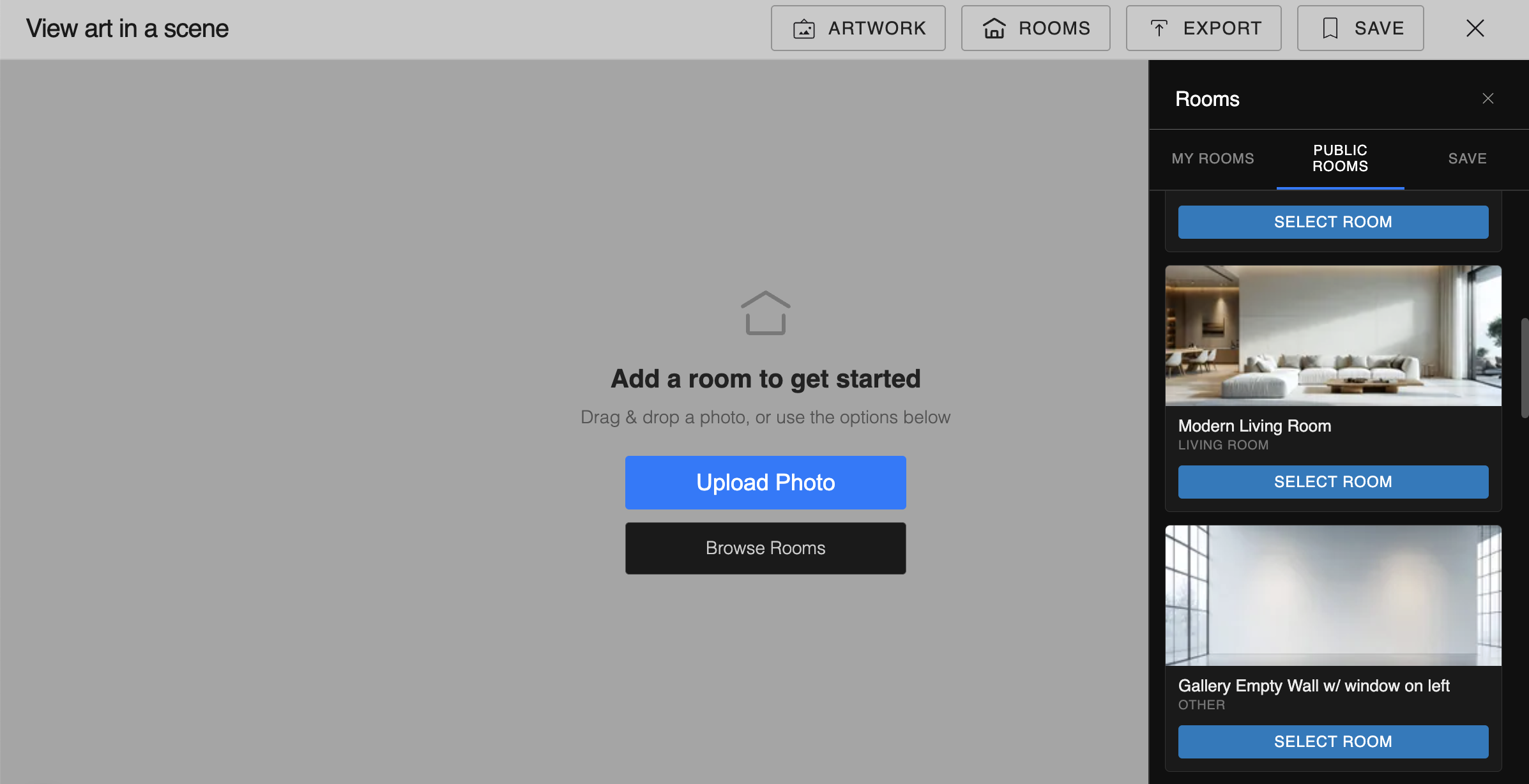
Use a real photo of the installation space: gallery, home, hotel, or showroom. Or choose from a library of curated interiors: gallery-white, modern living, traditional, and more.
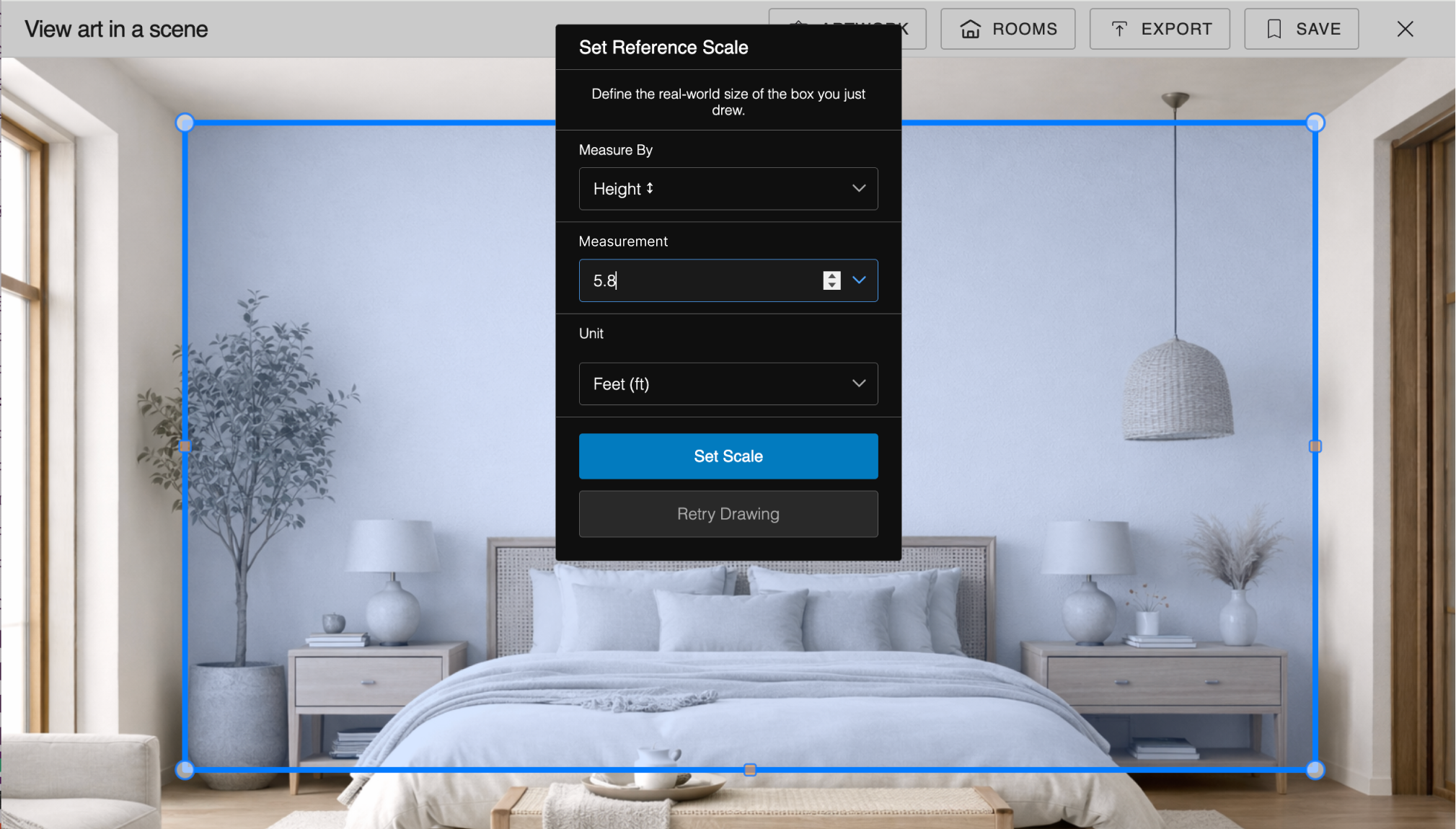
Mark a known real-world dimension directly on the room photo, a standard door (80 inches), a window frame, or a wall segment you've measured. Byrst uses this single reference to calibrate the entire scene so every artwork placed afterwards appears at its true physical size.
Bring pieces into the room from three sources. Each artwork placed uses its real-world dimensions to render at the correct scale against the calibrated room. Add multiple pieces and arrange them freely, gallery wall compositions, salon hangs, or solo feature placements.

Place any wall art 3D model already in your Byrst library, dimensions and framing are pre-loaded, ready to drop in.

Browse shared or partner catalogues and pull published artworks directly into the scene.

Upload a JPEG, PNG, or WebP image and specify the physical dimensions, Byrst places it at the correct scale immediately.
When the composition is ready, save the scene to your account for future editing, or export it immediately in the format that fits your workflow. Every export preserves the full resolution of the room photograph.
Multi-page client proposals with print-quality resolution.
Lossless transparency support for overlays and catalogue layouts.
Compact, high-quality images for product pages and social posts.
Smallest file size with superior quality for fast-loading websites.
From solo artists to national institutions, if you need to show how a collection looks in a space, Byrst Scene fits your workflow.

Pre-visualize hang layouts and collector presentations. Share room scenes with buyers before the physical install, and sell with more confidence.

Show collectors how your work inhabits a real space, not just a white-box product shot. Create multiple room compositions for different sized editions.

Compose art proposals directly in client room photos. Show scale, proportion, and spacing before any artwork is purchased or delivered.

Replace flat product shots with lifestyle room scenes that show buyers exactly how a print or painting fits in a real living space, at the right scale.

Include room scene visuals in lot catalogues and online listings. Help bidders visualise where a work fits in their home, before the gavel falls.

Build polished client presentations showing curated selections in the client's actual space. A powerful tool for closing art advisory and corporate commission projects.
scale accuracy, every artwork renders at exact real-world dimensions, not an approximation
average time to compose a full room scene from upload to export-ready
your existing Byrst catalogue syncs directly into every scene, no re-uploading or duplicating work
What types of rooms can I use?
Any interior photograph works, gallery spaces, living rooms, dining rooms, hotel lobbies, office reception areas, or any architectural interior. You can also choose from Byrst's library of curated preset rooms if you don't have a specific photo to work with.
How does the scale calibration work?
You mark two points on any element in the room photo whose real-world measurement you know, a standard door height (80 inches), a window width, or a measured wall segment. Byrst uses that single reference to calculate the pixel-to-inch ratio for the entire scene, so every artwork placed afterwards renders at the correct physical scale.
Can I place multiple artworks in one scene?
Yes, there is no fixed limit on the number of artworks per scene. You can compose full gallery wall arrangements, salon-style hang groupings, or multi-room collection previews. Each piece maintains its individual physical dimensions and can be repositioned independently.
Does it work with angled or non-flat walls?
Yes. Byrst Scene supports both straight and angled walls, including sloped ceilings, diagonal alcove walls, and architectural features common in converted spaces and contemporary gallery builds. Artwork placement adjusts to the wall angle automatically for architectural accuracy.
Can I use my existing Byrst Wall Art models in a scene?
Yes. Any artwork you've already processed through Byrst Wall Art, including pieces with mat and frame applied, can be pulled directly from your library into a scene. The physical dimensions and framing are already stored, so you won't need to re-enter them. You can update the size before placing if you want to preview a different edition format.
What export formats are available and what are they best for?
Byrst Scene exports in four formats: PDF for print-ready client proposals and catalogues; PNG for lossless archiving and layouts that need transparency; JPEG for compact web and social media use; and WebP for optimised website delivery with minimal file size. All exports are generated at the full resolution of your room photograph.
Can I save a scene and come back to edit it later?
Yes. Scenes are saved to your Byrst account and remain fully editable. You can add or remove artworks, adjust placement, swap pieces for different editions, and re-export in any format without starting over. This makes iterative client presentations straightforward to manage.
Upload a room, calibrate the scale, and place your first artwork in under 5 minutes. No 3D software, no design skills, no specialist team required.